
Financial transactions involving the transfer of money from one party to another are known as payments. For a parish or town council, payments may include staff salaries, utility bills, maintenance materials, contractor services, insurance, legal fees, and travel expenses.
Payments can take many forms, including cash, cheques, electronic funds transfer, and credit card. Accurate record-keeping ensures effective financial management and compliance.
Read Receipt And Payment Accounting For Parish Councils for more details
Payments within Scribe Accounts
Scribe Accounts has a specific transaction type called Payments, which supports council-specific features, including:
- S.137 tracking
- Payment Authorisation
- Power Used for Spend
Payments automatically feed into the Annual Governance & Accountability Return (AGAR).
Where are Payments Within Scribe Accounts?
Log into Scribe Accounts and navigate to menu Transactions → Payments. Alternatively click here
Watch our Scribe Bytesize video on how to add transactions
How to Add a Payment
- Log into Scribe Accounts and navigate to menu Transactions → Payments.
- Click the + button or select Add Record under the Edit menu in the top right-hand corner.
- Complete the required details (asterisk
*denotes mandatory fields):
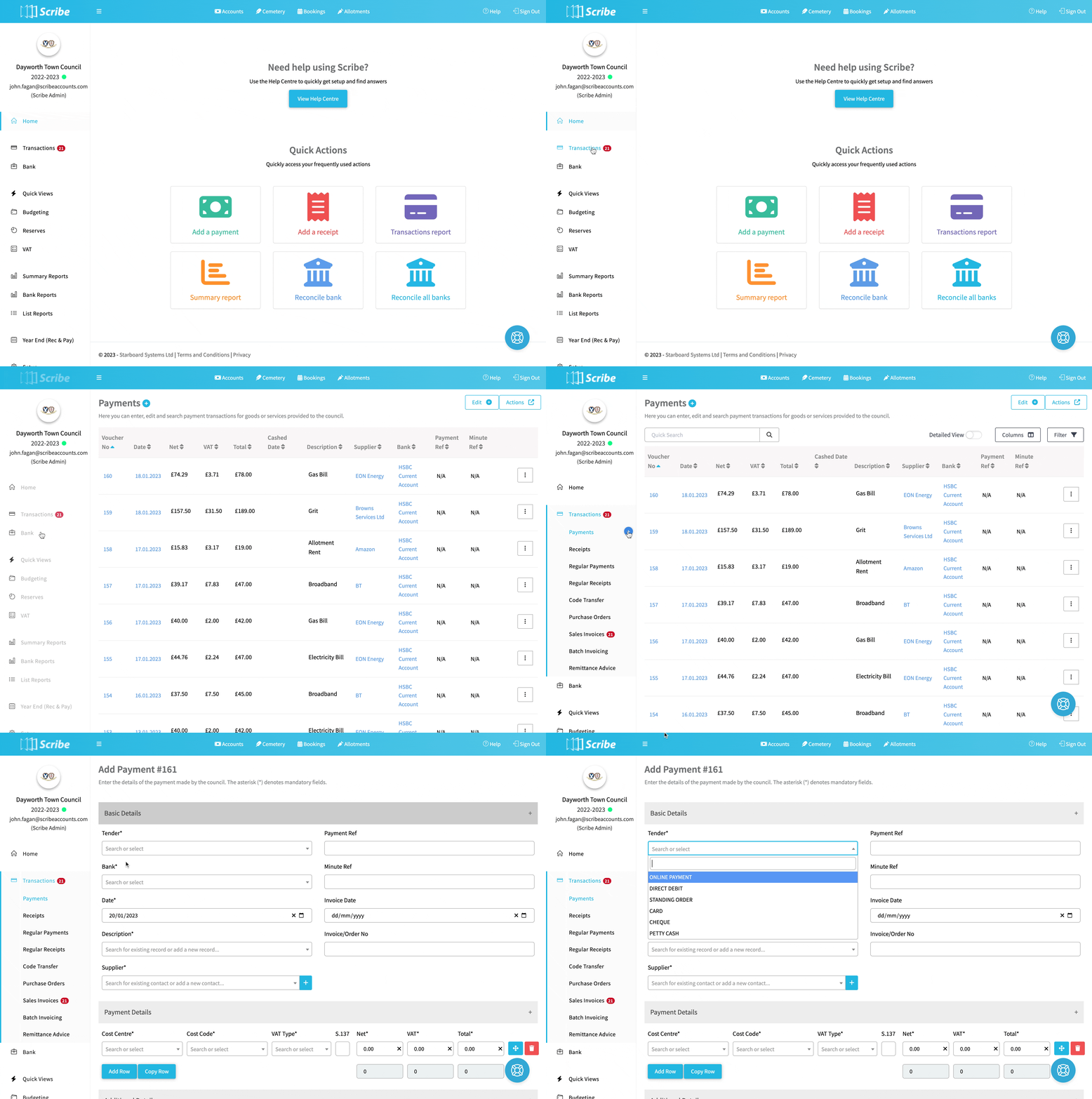
The entry screen will appear showing the unique voucher number allocated to the transaction. The voucher numbers are reset each financial year so the first entry of a new year will always be #1.
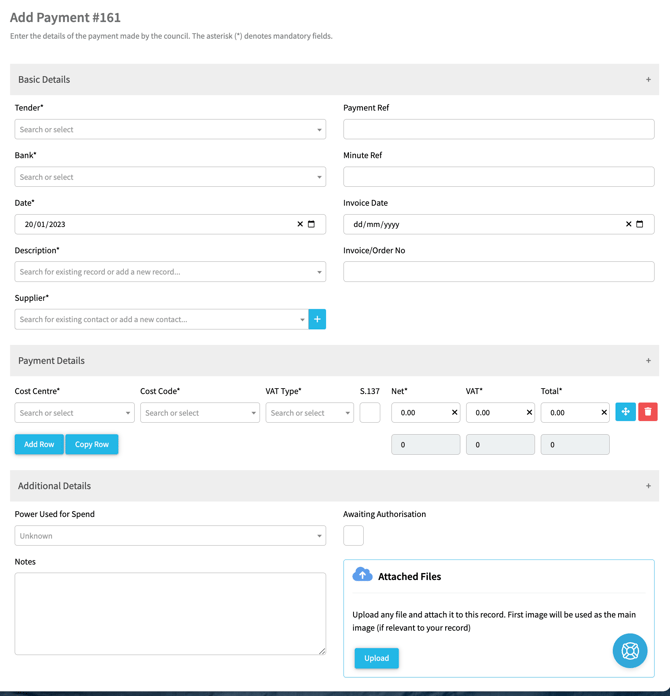
| Field | Tips |
| Tender* | How payment is made. Select from Online Payment (e.g. BACS), Direct Debit, Standing Order, Card, Cheque or Petty Cash (Note Bank Credit should be selected for receipts only - paying in of cash or cheques). |
| Bank* | Select the bank account the payment is made from. If you have selected Petty Cash as the Tender the Bank field will disappear as it is not relevant in this case. |
| Date* | The date the payment is made (e.g. cheque written, payment made online). |
| Description* | A description of the payment (e.g. salary, grass cutting). Select an existing description from the drop down list or select Create New to add a new description. |
| Supplier* | Select an existing supplier from the drop down list or click the "+" button to add a new supplier and enter relevant details. |
| Payment ref | A reference relating to the payment can be recorded here if necessary (e.g. cheque number). |
| Minute ref | If the payment was authorised in a meeting the minute number can be recorded. |
| Invoice/Order No | Enter the supplier invoice number or your PO number. When converting a purchase order to a payment, Scribe will prefill this field with the purchase order no. |
| Cost Centre* | Select the cost centre from the dropdown list |
| Cost Code* | Select the cost code from the drop down list. Further rows can be added where different cost codes or VAT rates apply. |
| VAT Type* | Select from the pre-filled VAT types that which applies to the receipt (Outside Scope, Standard, Exempt etc). |
| S.137 | Check the box if you wish to flag the transaction as under Section 137 (reports can be run on the transactions against which this box is ticked). |
| Net* | Enter the net value |
| VAT* |
Will automatically be calculated based on VAT rate selected and net amount |
| Total* | Will automatically be calculated based on VAT rate selected and net amount |
| Notes | Can be added if you want to enter more information than you have been able to enter under description. |
| Attached Files | Click Upload to select files to save against the record (e.g. the customer PO). **Not Available on Scribelite** |
Splitting Transactions: When adding a payment from the same supplier but needs to be split across multiple cost centres or cost codes, you can add new rows in the same entry by clicking Add Row. Ensure that the total of the line items matches what was actually paid.
Once verified against paperwork, click Add to save, or Add & Repeat to quickly enter similar payments.
How to Edit a Payment
- Navigate to Transactions → Payments.
- Click the three dots on the payment record and select Edit.
- Update necessary fields and click Save.
Important: Payments submitted on locked MTD VAT Returns cannot be edited. Edits to bank-reconciled transactions from previous months should be avoided; use a Journal for prior-period allocation/VAT corrections. See VAT/Code Corrections
How to Bulk Edit Payments
Bulk Edit only applies to descriptive fields (Date, Description, Supplier, Notes, Awaiting Authorisation, Minute Ref):
- Navigate to Transactions → Payments.
- Click Edit → Bulk Edit.
- Select the check boxes for the target transactions.
- Click Edit Selection, make modifications, and click Save.
How to Delete Payments
Payments cannot be directly deleted due to audit trail requirements. To remove an invalid or duplicate payment, edit the transaction, zero out all monetary values, and add explanatory notes.
If entered on the wrong transaction type (Payment vs. Receipt), zero out the original record and re-enter it under Receipts.
How to Find Payments & Reports
- Quick Search/Filter: Use the search bar under Transactions → Payments. See Searching, Sorting & Filtering Records Lists for more details.
- Reports: Use Transaction Reports in the side navigation to generate comprehensive reports. See Transaction Reports.