
What is a Transactions Report within Parish and Town Councils
The Transactions Report is a critical component of financial management for Parish and Town Councils. This report details all financial transactions that have taken place, including payments, receipts, and pending authorisations. It provides a comprehensive overview, aiding in the management of finances and making informed decisions.
Transactions Report within Scribe Accounts
In Scribe Accounts, the Transactions Report provides an in-depth list of all financial transactions. This includes receipts, payments, and payments awaiting authorisation. This report can be customised with various filters such as date, voucher numbers, bank account, cost code, and VAT type, providing a tailored view of financial transactions.
Where is the Transactions Report within Scribe Accounts
In Scribe Accounts, the Transactions Report can be found by navigating to menu Reports → Transactions Report alternatively click here.
How to Generate a Transactions Report within Scribe Accounts
To create a Transactions Report, first, log into your Scribe Accounts. Then navigate to Reports → Transactions Report. Here, you can choose the parameters to filter the transactions you want to view in the report.
How to Filter a Transactions List Report
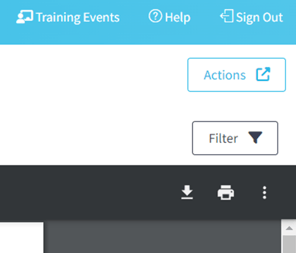
Before you generate your report using the above steps click the ‘Filter’ button. You can then access additional filter options such as date ranges, voucher numbers, bank account, cost code, or VAT type. Additionally, you can set a minimum value to only view transactions above a certain amount.
Detailed vs Summary View
When adding transactions, multiple rows can be added in order to allocate the amount to different cost codes and VAT types. The standard Transactions list report will show each row applied to the transaction as it's own line on the list report - you may therefore notice that the voucher number appears more than once.
If you would prefer to see transaction totals only (instead of a breakdown of individual rows applied to the transaction), select Filter, tick the box 'Hide Detailed View (Summary Only) and 'View Report'. Note that cost codes and VAT types will no longer display against transactions if this filter is applied.
How to Download a Transactions List Report
Once you have created your report you can download by simply selecting the Google ‘Download’ button, or by using the Actions button in the top right corner you can then choose the file format and the report will start downloading.
How to Print a Transactions List Report
Once you have created your report you can print it by simply clicking the printer icon in the google print bar.
For a more structured presentation of cost centres and codes, see the Detailed Cost Centre report.