
To ensure that Terms and Conditions are correctly linked within Scribe Bookings. Please refer to the steps below.
Steps
-
Access Bookings module
Access your Scribe Accounts portal and select the Bookings module from the main menu, the four dots on the top right.
-
Navigate to Settings
Click on the Bookings Page menu or navigate directly to the Booking Settings Edit page.
-
Locate the Requirement
Scroll down the settings page until you find the field labeled Terms and Conditions Link.

-
Enter Data:
-
If you have a link: Paste the full URL into the box.
-
If you do not have a link yet: Type the text "Add Terms and Conditions" directly into the box.
-
-
Save
Scroll to the bottom of the page and click the Save button.
-
Verify Dashboard Activation:
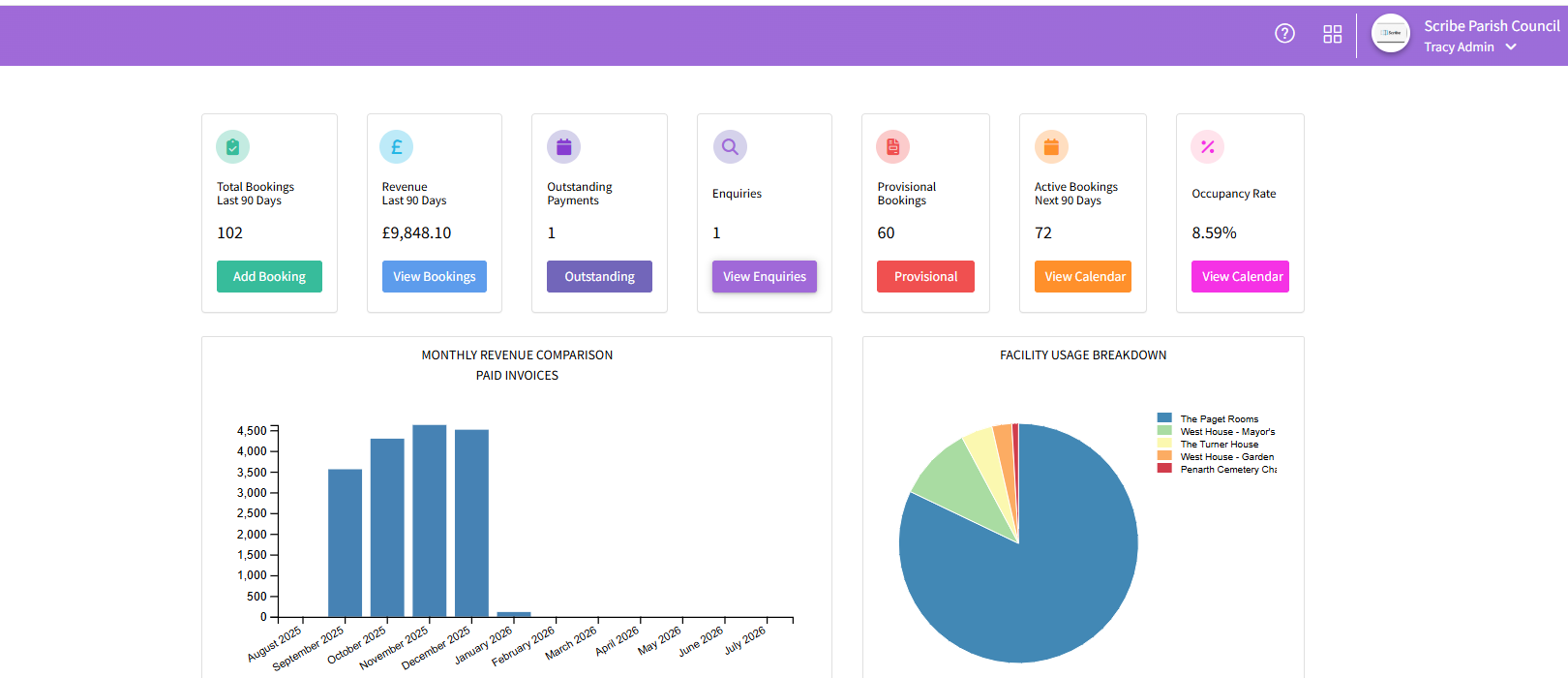
Return to the Bookings Home screen. Check that the "Add Terms and Conditions" task now displays a Green Tick. Once all setup tasks reach 100%, the "Getting Started" screen will disappear, and the Bar Chart home page will be visible.
Troubleshooting / Common Issues
Issue Possible Cause Resolution No Green Tick visible The field was left empty or not saved. Ensure text or a link is entered and you have clicked 'Save' at the bottom of the page. Still seeing Community Page Setup progress is less than 100%. Refresh the screen. Review the "Getting Started" list for any other items lacking a green tick (e.g., Add Venues, Add Prices). Dashboard is blank No booking data exists yet. Once the dashboard is unlocked, it will populate as you begin adding bookings and invoices.