
Sales invoices are essential for documenting revenue in Town and Parish Councils. They are formal documents that suppliers send to councils after providing goods or services. By detailing the items or services delivered, the price, and payment terms, sales invoices serve as a record of the transaction between both parties. These invoices help councils monitor their income and maintain transparency in financial operations. By properly managing sales invoices, councils can ensure they adhere to the necessary financial regulations and practices when receiving goods or services.
Sales Invoices within Scribe Accounts
**Available on Professional & Premium only **
Scribe Accounts has a specific transaction type called Sales Invoices, which allows you to raise sales invoices to then send to your customers. The data entered for an invoice can be automatically transferred to the receipt transactions when the payment takes place. This feature eliminates duplication and saves valuable time and effort, making the entire invoicing process more efficient and accurate. However, it is important to note that sales invoices do not constitute transactions and are not part of the accounts until payment is received and the invoice is converted to a receipt.
For those working in Income & Expenditure (I&E), Scribe will produce a "YE Debtors" report under your Year End menu. This will list all part-paid and outstanding invoices, grouped by cost code, to assist in entering your Year End adjustments.
Where are Sales Invoices Within Scribe Accounts?
Log into Scribe Accounts and navigate to Transactions → Sales Invoices. Alternatively click here
How to Add a Sales Invoice
💡 Learn how to customise sales invoices here - this will need to be done before you produce an invoice. 💡
💡 Learn how to email invoices directly to customers and update the council's correspondence email here. 💡
All entries for the current year will be listed in the menu, with the most recent entry shown at the top. You can click the + button to add a new record, or under the Edit button in the top right-hand corner, select Add Sales Invoice.
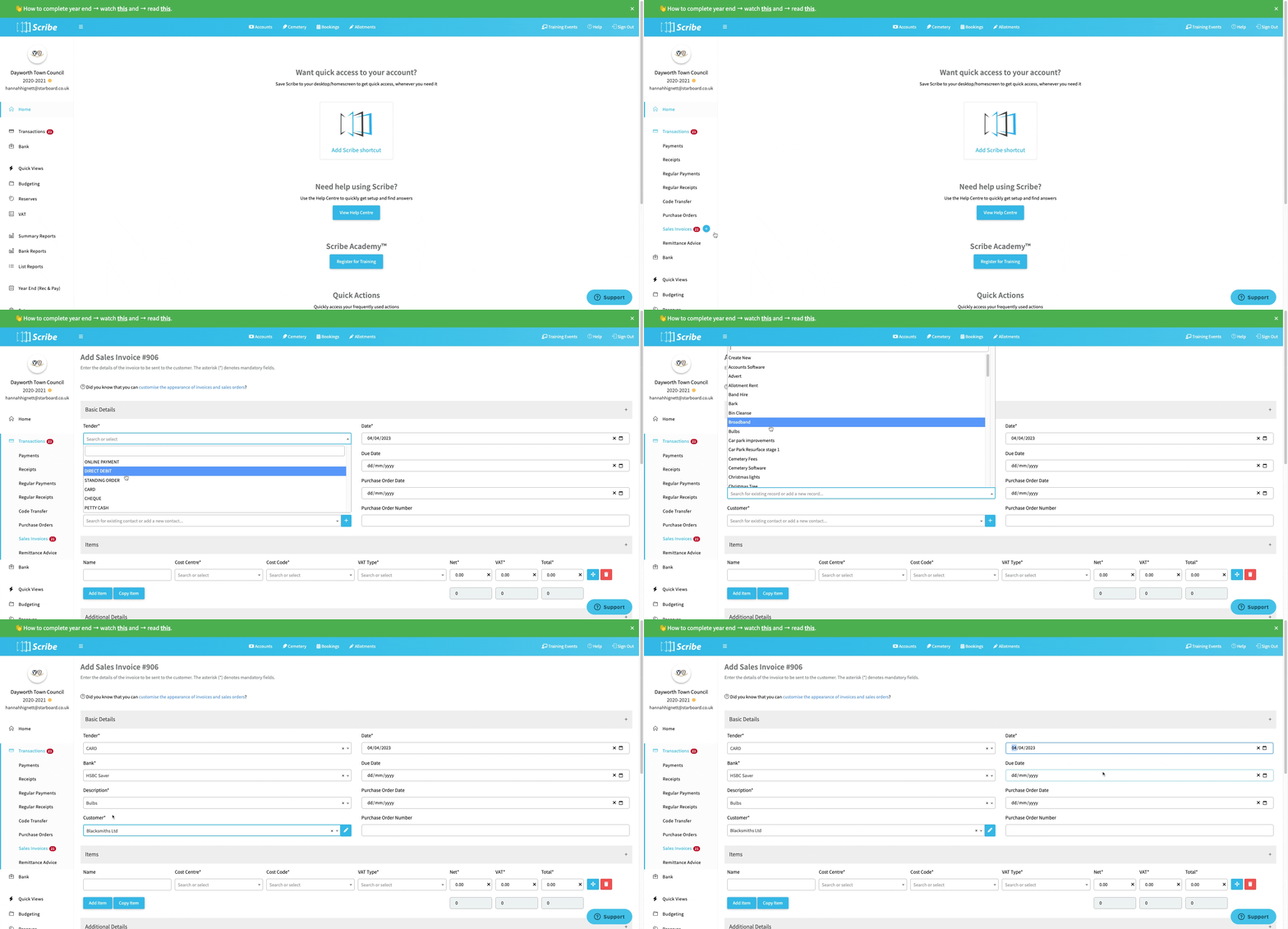
The entry screen has three sections of information to complete (mandatory fields are denoted with an asterisk *):
| Field | Tips |
| Tender* | How payment is expected to be received - this can be changed upon receipt if necessary. Select from Online Payment (e.g. BACS), Direct Debit, Standing Order, Card, Cheque or Petty Cash. |
| Bank* | Select the bank account payment is to be made into. If you have selected Petty Cash as the Tender the Bank field will disappear as it is not relevant in this case. |
| Description* | A description of the item/service to be supplied. Select an existing description from the drop down list or select Create New to add a new description. |
| Customer* | Select an existing customer from the drop down list or click the "+" button to add a new customer and enter relevant details. |
| Date* | The date the sales invoice is raised (defaults to "today") |
| Due Date | The date on which you expect the sales invoice to be paid |
| Purchase Order Date | The date on which the purchase order is received (if applicable) |
| Purchase Order Number | The purchase order number which relates to this invoice (if applicable) |
| Name | The name of the item/service you are supplying (e.g. hall hire) you can add multiple items. |
| Cost Centre* | Select the cost centre from the dropdown list - this will be allocated to the subsequent receipt. |
| Cost Code* | Select the cost code from the drop down list - this will be allocated to the subsequent receipt. |
| VAT Type* | Select from the pre-filled VAT types that which applies to the item (Exempt, Standard, Lower etc). |
| Net* | Enter the net value |
| VAT* |
Will automatically be calculated based on VAT rate selected and net amount |
| Total* | Will automatically be calculated based on VAT rate selected and net amount |
| Print Notes | Enter any additional notes you would like to include on your invoice |
| Footer Text | Select the a footer text template from the drop down list. (You can create custom invoice and purchase order templates in your council settings. Navigate to Account → Council Settings) |
| Payment Ref | A reference relating to the payment can be recorded here later if necessary (e.g. cheque number). |
| Minute Reference: | If applicable |
| Attached Files | Click Upload to select files to save against the record (e.g. the supplier invoice). |
How to Edit a Sales Invoice
If an error was made when a sales order was entered, it can be edited to correct it.
Note: Once an invoice has been paid or partially paid, no further amendments or corrections can be made and the Save button will disappear.
- Navigate to Transactions → Sales Invoices.
- Bring up the entry screen and the list of sales invoices.
- On the entry you want to edit, click on the three dots and select Edit.
- Update any necessary information.
- Click Save to update the sales invoice.
How to Find Sales Invoice Record(s)
Navigate to Transactions → Sales Invoices to use the quick search and filter options.
See Searching, Sorting & Filtering Records Lists for more details.
How to Convert the Sales Invoice to a Receipt
Once payment has been made, you can convert the invoice to a receipt:
- Navigate to Transactions → Sales Invoices.
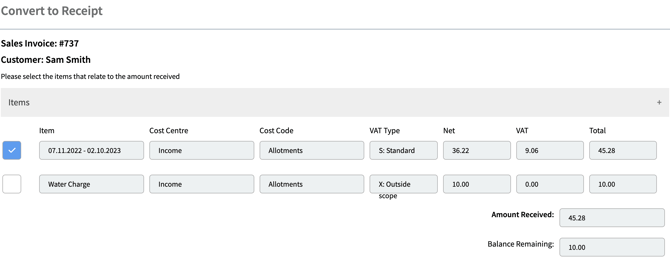
- On the entry you want to convert, click on the three dots and select Convert to Receipt.
- Multiple items will be ticked by default; any items not yet paid can be unticked.
- If the line is only part-paid, amend the amount at the receipt stage; this will show as Part Paid on the sales invoice.
- Select Convert. All invoice details will feed through into the receipt transaction, which will take the next available voucher number.
- Double-check the details and select Save to create the receipt.
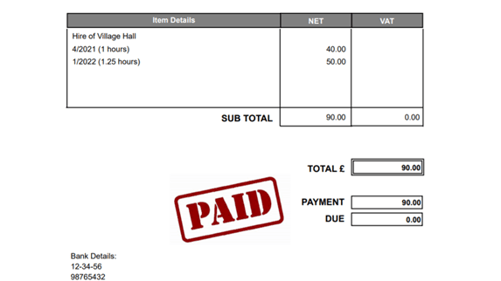
The sales invoice status will update from Outstanding to Paid or Part Paid depending on the amount received. When full payment is received, the invoice will display a PAID stamp.
Important: If a sales invoice has manually been updated to paid with no receipt attached under the Related Records section, you will not be able to convert it into a receipt. You will need to set the status back to outstanding, save it, and then proceed to convert the invoice into a receipt.
Related Payments
When converting a sales invoice to a receipt, Scribe links both records together. By clicking into a sales invoice, you can view all receipts related to that specific invoice under the Related Records section or navigate directly to them via the provided link.
When viewing a receipt, a link to the related sales invoice will also be present. The invoice/order number displays the financial year, Scribe invoice number, and (if entered) the relevant purchase order number.
Duplicate a Sales Invoice
Invoices can be duplicated regardless of whether they are paid, part-paid, or outstanding:
- Locate the sales invoice, click the three dots, and select Duplicate.
- Scribe will open a entry screen and assign the next available invoice number.
- Amend details as necessary (e.g., updating the invoice date).
- Click Save to generate the new invoice.
Changing the Payment Status (available to Admin Users only)
If you have not converted an invoice to a receipt, you may manually set the payment status to Paid:
- Edit the invoice.
- Navigate to the Additional Details section and click on the Status drop-down menu.
- Amend the status to the correct setting.
- Click Save.
Note: If a sales invoice has manually been updated to paid with no receipt attached under the Related Records section, you will not be able to convert it into a receipt. You will need to set the status back to outstanding, save it, and then proceed to convert the invoice into a receipt.
Show a Sales Invoice as Refunded
If a refund is issued to an invoiced customer:
- Locate the original sales invoice, click the three dots, and select Refund.
- Enter the amount refunded as a negative value.
- Select Refund. Scribe will pull through all details, assign the next available receipt number, and link the record under receipts to both the sales invoice and the original receipt.
How do I link a Sales Invoice to a Receipt
If an invoice was not converted directly to a receipt, you can manually link them via the edit option:
- Edit the invoice and expand the Related Records section.
- Click the Link button.
- Enter the transaction ID to link the records.
Deleting Invoices
Sales invoices cannot be deleted in order to maintain a clean audit trail. If an invoice needs to be removed because it is no longer required or is a duplicate, you must cancel the entry.
What happens at Year End ?
Accounts must reflect transactions as they take place. For example, if an invoice is dated in March but payment is received in April, the transaction is recorded in April.
Sales invoices are operational documents and do not feature directly in year-end accounts. However, if working in Income & Expenditure, adjustments must be made for unpaid orders sent out in the previous financial year.
- Sales invoice numbering continues sequentially across financial years.
- All outstanding and part-paid invoices carry forward into the new year, displaying the year raised next to the invoice number for clarity.
- Invoices remain outstanding until converted to a receipt or cancelled. Uncollectible invoices should be cancelled periodically.
Do My Outstanding Sales Invoices Carry Forward Into The New Financial Year?