
Bank reconciliations within Parish and Town Councils involve comparing the council's financial records with the bank statement to ensure that both are accurate and consistent. This process helps identify discrepancies, such as missing transactions, bank charges, or direct debits, and ensures the council's financial records are up-to-date and accurate.
Regular bank reconciliations provide the council's clerk or RFO (Responsible Financial Officer) with security in case of any challenges or financial audits.
Reconciling within Scribe Accounts
Scribe Accounts has a specific function called 'Reconcile' which allows you to easily compare your council's bank with your accounts in Scribe and quickly identify any discrepancies. By using the Reconcile transaction type, councils can efficiently maintain accurate financial records and ensure that their accounts are up to date.
💡 We recommend performing reconciliations on a monthly basis, ideally when you receive your bank statement. This helps to prevent missed transactions or identify entries on the bank statement that were previously unknown, such as bank charges or direct debits. By reconciling monthly, any discrepancies will be limited to a single month's worth of entries, making it much easier to pinpoint and resolve issues.
Where is the Reconcile Function within Scribe Accounts?
. Log into Scribe Accounts and navigate to the menu: Bank → Reconcile. Alternatively click here
How to Reconcile within Scribe Accounts
- Navigate to the menu Bank → Reconcile.
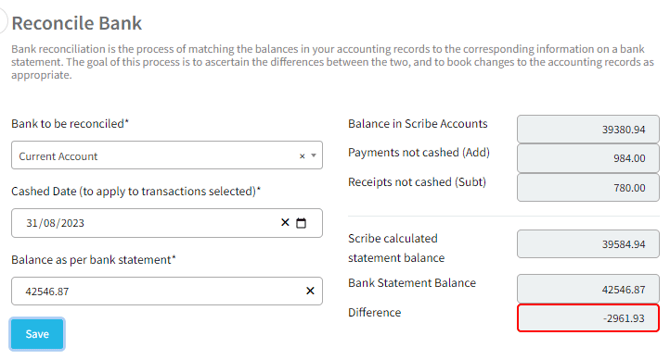
- Select the bank account you want to reconcile from the drop-down menu.
- In 'Cashed Date', select the date you want to reconcile to. This is most likely to be the end of the month or the statement date if your statement does not fall exactly on the month end.
- Enter the Bank Statement Balance that you are reconciling to. The difference between your entered statement balance and the Scribe calculated statement balance will be shown on the right.
- All transactions entered into Scribe against the chosen bank account that are as yet uncashed will appear on the screen—payments on the left, receipts on the right.
- Work through your physical or PDF bank statement and tick the box next to the payments and receipts that appear on it. The difference field will dynamically update as items are ticked.
💡 Important Note on Transaction Dates & Greyed-Out Items: You can only tick off transactions in a reconciliation if the transaction date is on or before the selected cashed date.
- If a transaction has already been cashed but its transaction date is within the cashed date, it will be greyed out.
- If its transaction date is after the cashed date in your reconciliation, it will be greyed out and cannot be selected until you update the cashed date to include that transaction, or adjust the transaction if the date was entered in error.
Once you have selected all the relevant transactions and your difference is💡 Important Note on a Difference of -0.00: When all items are ticked, a difference of 0.00 indicates the statement has been successfully reconciled.
Sometimes, individual bank reconciliations will show a difference of -0.00. Please note that this still counts as a balanced reconciliation in Scribe! This minor quirk happens due to behind-the-scenes fraction-of-a-penny decimal rounding. If you see
-0.00, you have successfully balanced and can safely proceed to the next step.If the difference shows any other number (e.g., -0.01, 0.50, etc.), this indicates a genuine discrepancy that must be investigated before saving.
0.00 or -0.00, click 'Save'.
📌 Pro-Tip: Reconciling in Stages
The Reconcile process can be completed as many times as you wish, meaning it can be done in stages. This is helpful if your statement is multiple pages long or if you spot an error that needs correcting mid-way through.
Simply enter the statement balance for the specific page you are working on (rather than the final total), tick the items, make a note on your paper statement of where you left off, and click Save (it is perfectly fine to have a difference at this point). You can then amend or add transactions as necessary, return to the Reconcile screen, select the same Bank Account and Cashed Date, re-enter your target statement balance, and continue where you left off.
How to Filter a Reconciliation
You can filter and search your transactions while actively reconciling:
- Search: Use the search bar directly above the list of transactions (there is a separate search bar for both payments and receipts).
- Sort: Click any column header at the top of the transaction list to instantly sort by that column (e.g., by Date or Voucher Reference).
Viewing and Managing the Reconciliation Report
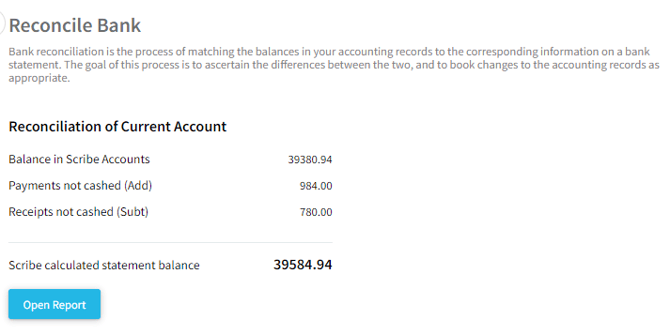
After clicking Save, a summary will be shown on screen displaying the Scribe calculated statement balance. If there was no difference (or a -0.00 difference) when Save was clicked, this will equal the statement balance that was entered.
- View the Report: Click 'Open Report' to view the summary as a printable document.
- Filter Uncashed Items: Click Filter (top right-hand corner of the report view) and select the relevant Payment or Receipt option under Show to view a breakdown list of uncashed transactions or transfers. You can also choose to order this list by voucher number or date. Click View Report to update your current view based on these selections.
How to Download or Share a Reconciliation Report
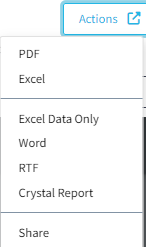
Click 'Actions' in the top corner of the screen to reveal your options:
- Download: Select PDF or Excel (the most commonly used), Word, RTF, or Crystal Report to generate and save the file.
- Share: Click Share to create a direct web link that opens the report PDF in a separate webpage for easy viewing.
How to Print a Reconciliation Report
Select the printer icon at the top right corner of the report view to print a hard copy for your files. Once the required reports have been printed or saved, you can safely exit the page. If you have additional bank accounts to reconcile, simply repeat this process from the beginning.
Still Not Balancing?
- If your final statement balance does not match the balance calculated on Scribe (and shows a number other than
0.00or-0.00), please see our troubleshooting guide: Why don't the accounts reconcile with the bank? - When all of your individual bank accounts have been completed and successfully saved, navigate to Reconcile All Banks to run a comprehensive final check on your council's total bank position.