
Printing, Downloading or Emailing Transactions
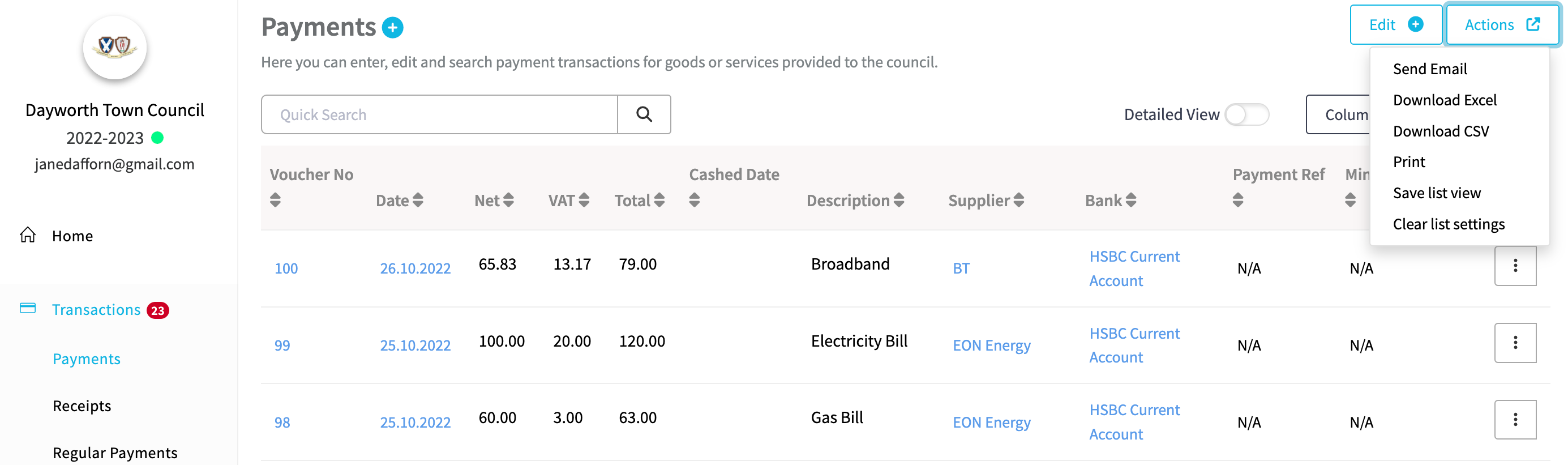
In Scribe, you can print, download, or email transactions directly from your payments and receipts list. Use the Action button in the top right corner to access all three options.
How to Download Transactions
Select the Action button in the top right corner and choose to download your transactions list as an Excel or CSV file.
How to Print Transactions
Select the Action button in the top right corner and choose Print to print your transactions list.
How to Email Transactions
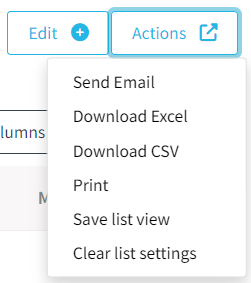
By selecting the 'Action' button in the top right corner, you will have the option to email your transactions to the relevant supplier or customer by selecting 'Send Email'.
Tick the box next to one or more transactions and select "Send Email" in the top right corner.
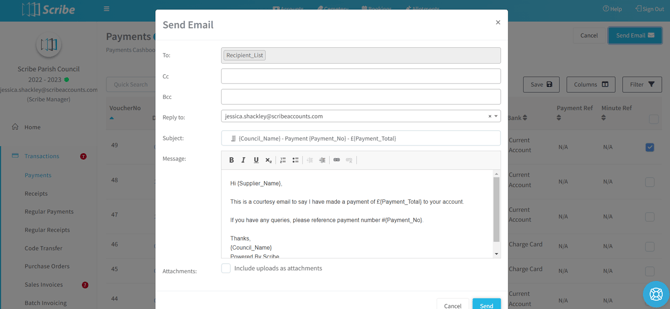
Similar to emailing invoices, the "To" email address will come from that entered against the contact under the CRM menu option. You can cc and bcc additional emails and select a "Reply To" email from the drop-down (this is based on users set up on your account).
The message will pre-fill with a basic template. Tick the Attach checkbox to include any uploaded files (such as an invoice) in the email. See Templates for more information on customisation.
Select Send. You can then monitor whether the email was successfully sent and received under the 'Notifications' log in the transaction record.