
Managing Internal Auditor Access in Scribe Accounts
Managing access to your council’s financial and administrative data is a critical responsibility. Scribe Accounts makes this process straightforward, with built-in user management tools that allow administrators to control access securely and efficiently.
This guide explains how to:
- Add a new Internal Auditor
- Assign Read-only permissions
- Set access duration (including temporary access)
- Remove or revoke user access
⚠️ Important: User management must only be carried out by authorised administrators. This ensures proper access control and supports your council's compliance with Assertion 10 of the Practitioners' Guide 2025 IT Policy Requirement and good information security practices.
Who Can Use This Guide
This process applies to:
- Clerks
- Responsible Financial Officers (RFOs)
- Other authorised council administrators
Note: You must have admin-level access to perform these steps (Council: Users/Editor Permissions)
How to Add an Internal Auditor
- Log in to Scribe Accounts with your administrator credentials.
- Navigate to Account → Users.
- Review the existing list to ensure the user/internal auditor doesn't already exist.
- Click the Plus (+) button or select Edit → Add Record.
- Complete the Internal Auditor details:
- User Name: Enter the full name
- Email Address: Enter the Auditor's email address
- Set the Internal Auditor's access duration:
- To give unlimited access, leave the Unlimited box ticked.
- For temporary access, untick Unlimited and enter an Expiry Date.
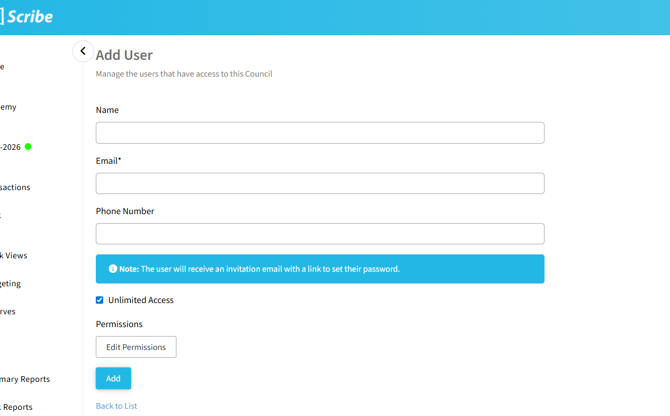
- Set the appropriate permissions for the Accounts module:
- Click Edit Permissions.
- Select Read-Only for all accounts modules.
- Click Done once all permissions are set.
- Click Add to create the user as an Internal Auditor.
-
- An invitation email will automatically be sent to the Internal Auditor. They must follow the link to activate their account and set a password.
- The Internal Auditor will appear with the status Pending until they have logged in. Once they accept the invitation and create a password, refresh the page to see their status change to Authorised.
-
Note: If the status does not change to Authorised, please contact us at info@scribeaccounts.com so we can refresh the sign-in on our side.
✅ Double-check their access and permissions are correct.
🛑How to Revoke or Remove an Internal Auditor
From the same menu (the three dots next to the Internal Auditor's name), you can also:
- Revoke Access: Immediately disable their login access.
- Remove Internal Auditor: Permanently delete the Internal Auditor from the system.
📝 Notes & Best Practice
- Review users regularly, especially at the end of the auditing period.
- Set expiry dates for temporary staff or contractors.
- Ensure permissions match the role—always use Read Only for auditors.
- In line with Assertion 10 (Paragraph 1.54), always follow your council's information security policy when managing Internal Auditors.