
Suppliers can be advised that payments have been made to them using the Send Email functionality available against Payments.
- Navigate to Transactions → Payments.
- Locate the payment that has been made - scroll through the list or use the Quick Search or Filter.
- Click the three little dots → Send Email.
- The Send Email screen will appear and will populate with the details of the selected payment:
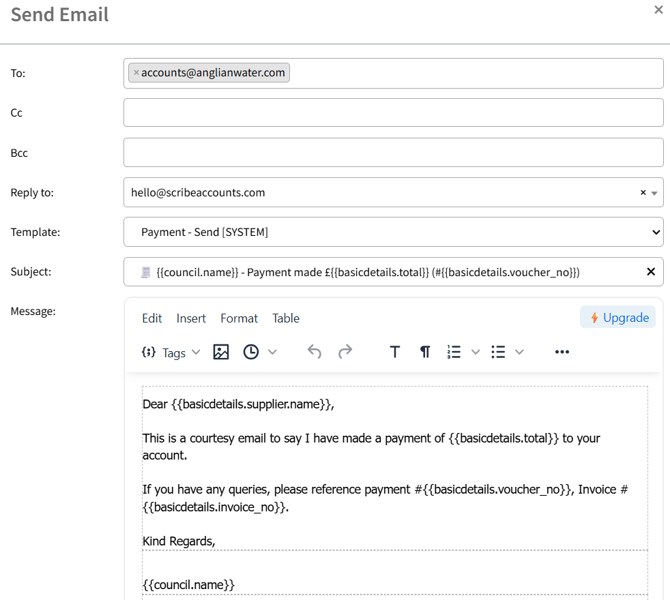
- Further text can be added if required and files can be attached. Click Preview to see how the email will look:
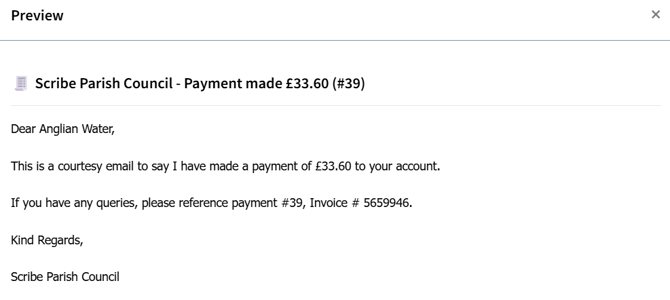
- Click Send to send the email.
Required Configurations
- Email To: Users must add the supplier's email address in order to populate the To field:
- When in the Transactions → Payments screen click the supplier name (in blue) to open the Edit Contact screen. Alternatively navigate to CRM → All Contacts. Search for the supplier and then click the three little dots → Edit.
- Enter the email address in the Email Address field and Save to update.
- Reply to: Users must add the council's correspondence email address in order to populate the Reply to field:
- Navigate to Account → Council Profile.
- Scroll to the Automated Message Notifications section.
- Enter the council's correspondence email address under Accounts.
- Save to update.
Sending Emails in Bulk
If you would like to send multiple payment advice emails (e.g. following a payment run) you can use the Bulk Send Email function:
- Navigate to Transactions → Payments.
- Ensure the payments you wish to send emails for are grouped together. They will likely be the most recent but you can use the Filter to filter by e.g. date if required.
- Click Actions (top right corner) and then Send Email.
- The screen will update to show tickboxes on the right hand side against each payment.
- Click each tickbox to display a tick for the payments that you wish to send an email for.
- Once all payments have been selected click Send Email (top right corner).
- The Send Email screen will appear. Each email will be configured with the details of the specific payment.
- Click Send to send emails for all the selected payments.
Editing Templates
The default template is Payment - Send. When Send Email is selected further text can be added directly to the email before sending.
If you would prefer to create a template specific to your council please see Templates. Once created select it from the Template drop down in the email screen.