
Forecasting for the Current Year in Scribe
Scribe offers a forecasting function that allows you to set your predicted income and expenditure against cost codes in order to predict your likely end of year position.
A forecast can be created from any point - starting at the half year point works well. Once you have your April - September actuals, you can forecast for the remaining six months to result in the expected end of year position.
You have two options for forecasting in Scribe:
-
Set forecasting types against each cost code direct in Scribe. See Setting Forecasting Options.
-
Download the Budget Worksheet and enter your forecast figures against cost codes in Excel. See Budget Worksheet
Be mindful not to be too optimistic or pessimistic when forecasting. You want to result in the likely end of year position. So if your predictions mean that you expect to end up well overspent, then this should be what the forecast shows.
Analysing the Forecast
Once you have created your forecast, it can be analysed against the current budget to decide which budget lines may need increasing (or decreasing) in the next financial year.
Also take into account any changes in the new year, e.g. taking on new services or increases in supplier costs. You may also need to use data from previous years, especially if the current year is non-typical.
If you have been using the Budget Worksheet to forecast, you can also enter your draft budget figures into the Excel document for importing back into Scribe.
Creating the Next Financial Year in Scribe
You can open the new financial year at any point in Scribe, and we recommend doing this during budgeting season so that you can add your draft budget figures to Scribe and produce a report for approval.
To set up your new financial year:
-
Navigate to Setup → Financial Years.
-
Click on the blue '+' symbol or select Edit → Add Record.
-
Scribe will prefill the start and end dates, so you can simply click Add.
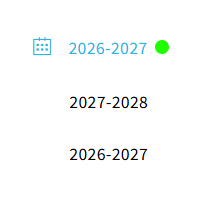
Navigate to the new financial year via the menu on the left.
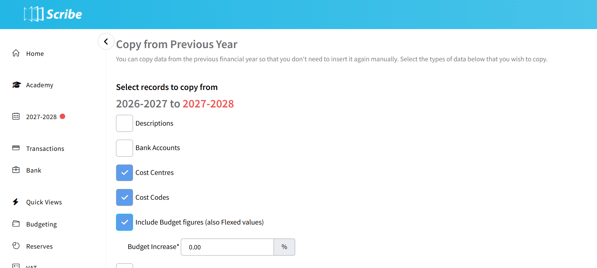
In the new year, select the 'Copy From Previous Year' icon on the home page.
You will need to copy forward your cost centres & cost codes in order to add your draft budget figures, regardless of whether you are entering these manually or importing from the Budget Worksheet.
You can choose to bring forward your existing budgets if you wish (and apply a % increase to each budget), or leave unticked to start from scratch.
Other records can be copied forward at a later date.
Entering Your Draft Budgets in Scribe
Once you have copied forward your cost centres and codes, you can add your draft budget figures (or update them if copied forward) via Budgeting -> Quick Edit.
Alternatively, if you have added your draft budget figures to the Budget Worksheet, you will be able to import these. For full details on this feature, please see Budget Worksheet.
Once complete, you can run the Summary Report in the new financial year, or the Budgeting Report in the current financial year for a 3 year comparison, to review the draft budgets.
💡If you need to amend the draft budget figures, this can be done in the new financial year via Budgeting -> Quick Edit and your reports will update accordingly.