
Prerequisites / Requirements
Before you begin, ensure you have:
- CRM Editor Access: Users must have CRM editor permissions assigned to their user profile to add, edit, or merge contacts.
- Active Scribe Subscription: The CRM feature comes automatically included as a standard part of your Scribe Accounts subscription.
How to Add a Contact into the CRM
- Navigate to the menu CRM → All Contacts.
- Click the blue "+" icon or Edit/Add Record button to create a new contact.
- Fill in the necessary details for the contact.
- Click Save to store the contact record.
💡 Tip: Contact addresses entered here will automatically populate onto raised sales invoices and purchase orders.
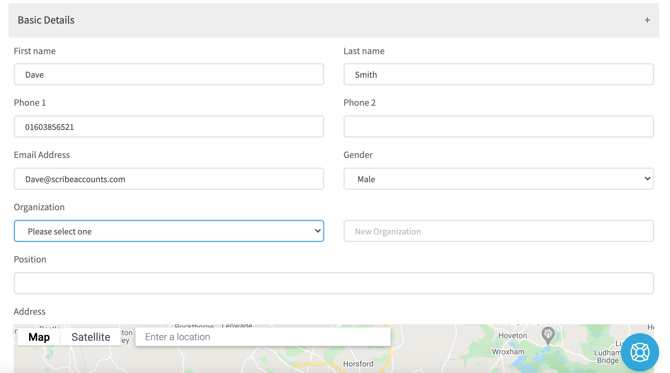
Using the CRM Screen for Quick Look-up
- Navigate to CRM → All Contacts to view your database.
- Use the search bar on the right side of the screen to quickly locate a specific contact using details like phone numbers, names, or emails.
- Apply advanced search parameters by clicking the Filter button next to the search bar.
Editing and Archiving Contacts
- Find the supplier or customer from the list in the CRM menu.
- Click the three vertical dots next to their name and select Edit.
- Update the details as necessary. To update a supplier's organization name specifically, navigate to CRM → All Organisations, select the three vertical dots next to their name, and choose Edit.
- Click Save at the bottom of the screen to commit your changes.
⚠️ Important Note on Archiving: You can archive a contact if no transactions have been recorded for them in the current financial year. To keep your database tidy, it is best practice to archive unneeded contacts immediately after copying your data forward to the next financial year, before entering any new transactions.
Merging Duplicate Contacts
If you have multiple records for the same contact and both have active transactions allocated throughout the year, you can merge them together:
- Select the three vertical dots next to the specific contact record you wish to keep and choose Merge into this.
- Tick the checkbox on the right-hand side of the duplicate contact(s) you wish to absorb.
- Click the Merge contacts button located in the top right-hand corner.
- Verify that any past transactions allocated to either contact now appear under the Related Records section of the newly merged contact.
Exporting the Contact List to Excel
- Go to the required contact list view within the CRM menu option.
- Select the Actions button at the top of the list.
- Choose your required spreadsheet format. The system will export the stored data into an Excel document, cleanly organizing information into separate columns.
Technical Specifications / Reference
| Feature | Detail |
| Contact Addresses |
Automatically populates onto raised sales invoices and purchase orders. |
| VAT Registration Number |
Must include the supplier's full VAT registration number if required to show on a VAT report. Essential for VAT Form 126. |
| Council A/C No |
Automatically generated by Scribe. Can be overkeyed with the supplier's own account reference for the Council to show on purchase orders or remittance advice. |
| Cross-Module Sync |
Allows shared contacts to be viewed across different modules of Scribe (Bookings, Allotments, and Cemetery). |
Troubleshooting Common Issues
Problem: Cannot add a new customer or supplier while currently inside a record entry screen or on the CRM → All Contacts screen.
- Cause: Your user profile might lack CRM Editor access, or you may be looking for a standalone add button that isn't displaying correctly in the entry field.
- Solution: Check with your account administrator to grant you have CRM Editor access. If you have permission, you can add contacts directly while entering a transaction by typing the new contact's details into the supplier/customer field or on the CRM → All Contacts screen.
Frequently Asked Questions (FAQ)
Q: Can contacts be created while I am actively entering a record? A: Yes. As an alternative to the main CRM menu, contacts can be added directly whilst entering a record, provided your user account has the required CRM Editor permissions.
Q: Will archiving a contact delete their transaction history from previous years? A: No. Archiving a contact simply hides them from active look-up menus to tidy up your current year workspace. Their historic transaction records remain completely secure and auditable.