
This report allows the user to download their budget, actuals and forecasting figures (if set) from Scribe into a spreadsheet which allows easy editing.
Once the budgets have been set and any notes added the data can be imported back into Scribe to populate in the following year.
Imports can be repeated as many times as required if the figures are updated.
Running the Report and setting the Filters
-
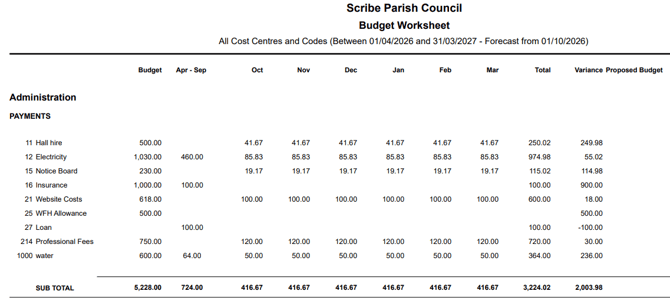
Navigate to Budgeting → Budget Worksheet
-
The report will automatically run with the default settings applied but it is recommended to review the Filters (click the Filter button):
- Select if you want to show Forecasting, and from which month. This is relevant if you have set Forecasting Types in Scribe. If not forecast figures can be entered directly into the spreadsheet once downloaded.
- Select if you want to run the report for just a single Cost Centre or Cost Centre Group. This may be useful if you have different departments or staff working on different parts of the budget. Of course the full report should always be run to review in full.
- Decide whether to Show Zero Lines. It is recommend to not tick this box to make the report cleaner and easier to understand.
- Once the options have been set click View Report to update.
Important Points to Note
-
The Apr- Sept column will display the actual figures for this period and it is expected that users will complete their September data entry and reconciliation before running the report. If the report is run at a later date any actuals relating to October - March will display in the relevant column unless Show Forecasting has been selected from that month.
-
If any codes have both a receipt and payment budget or both receipt and payment actuals they will be repeated, appearing firstly in the payments section and then in the receipts section under the relevant cost centre with the relevant values displayed. The cost code numbers are shown on the report for clarity.
Downloading the Report
Once the report displays on screen with the correct forecasting and filter/sort options applied click the blue Download Budget Worksheet button: 
The report will download and show in your browser under Downloads
It will also appear in your Downloads folder:
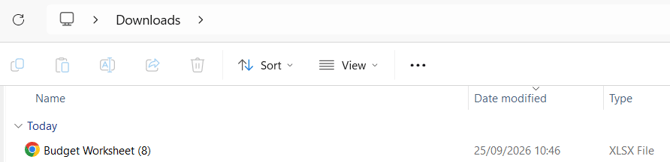
It is configured to open as an Excel document. If you do not use Excel open the file in your preferred format. e.g. Google Sheets.
Editing and Saving the Spreadsheet
Once downloaded into spreadsheet form it can be used as a normal spreadsheet. The formulas will still calculate so do not overtype the values appearing in the Total and Variance columns or the Sub Total rows.
Enter or amend any forecast amounts which will update the Total and therefore the Variance columns. Enter values into the Proposed Budget column for budget amounts for the following year.
As many versions and copies can be saved as required. It is strongly recommended to delete any versions that are no longer relevant and ensure each version is clearly titled. Once the budget has been agreed and approved the final version of the spreadsheet should be saved and labelled accordingly.
Importing into Scribe
Importing the spreadsheet into Scribe assumes that the next year has been set up. If this has not yet been done please see: How do I Start the New Financial Year?
The import of the next year's budget figures and notes must take place in the current year. E.g. to import 2027/28 budget figures you must be logged into 2026/27.
The import into Scribe can be done as many times as needed. Users may import the budget just once when it has been agreed and approved or they may decide to import different versions in order to review the figures on the Scribe reports, e.g. the Budgeting Report.
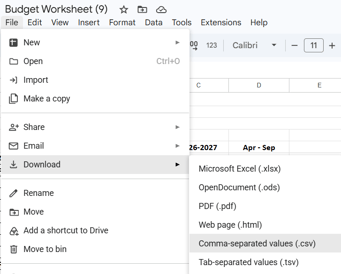
When you are ready to import the spreadsheet save it as a csv file:
- Navigate to Budgeting → Budget Worksheet
- Click Import a worked-on Worksheet
-
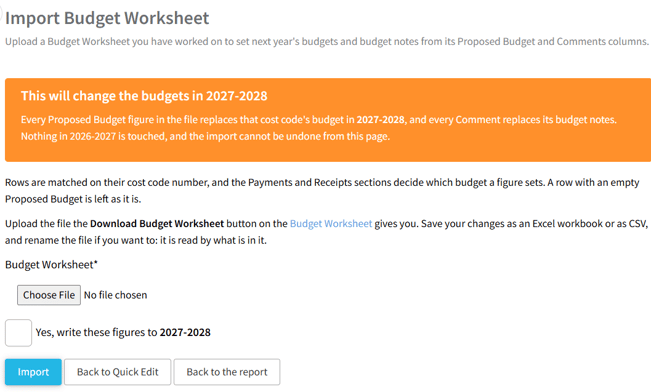
The following page will display:
-
Click Choose File and navigate to select your saved csv version of the spreadsheet.
- Tick the box confirming you want to update the year as displayed and click the blue Import button.
- If successful a green message will appear stating how many budgets and notes were updated.

- A red message will display if it was not possible to import the spreadsheet or if any codes were missing in the following year.
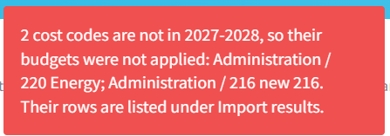
- Further details of the import results will be displayed on the page. They must be reviewed thoroughly and issues resolved in order to import again.
- Once imported the budget amounts and notes appearing in the following year must be reviewed in order to check that it displays as you expect.