
How to Add a Bank Balance in Scribe Accounts
To add a bank balance in Scribe Accounts, follow these steps:
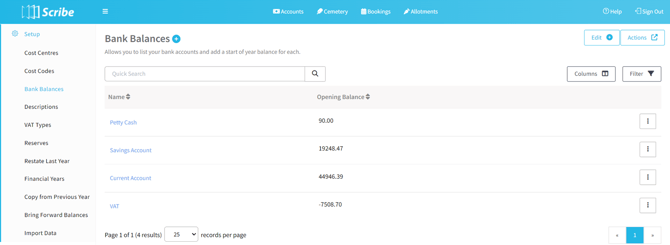
- Navigate to menu Setup → Bank Balances.
- Click the "+" icon to add a new bank account.
- Enter the name of your bank account.
- Input the opening balance as of 1st April (refer to the guidance on opening balances below).
- Save your changes.
If Petty Cash is used, click on the name and this will take you in to edit the opening balance. Enter the cash balance as at 1st April. If not used, leave at £0.00.
Guidance on Opening Balances
- The total of your opening balances as at 1st April must come from your cashbook, not your bank statements, as any unpresented items will need to be accounted for.
- A bank reconciliation as at 31st March will provide you with the figures required.
- Once entered, add the opening balances of each bank (and petty cash if used) - this should equal the Box 8 figure on your previous annual return.
- Of course, the figures on the AGAR will be rounded, but this will provide you with confirmation that the opening balances are correct.
How to Close a Bank Account Within the Financial Year
If a bank account is closed mid-year, you cannot simply delete it, as its transaction history for the year must be preserved. Instead, you must ensure all transactions for that account have been fully entered, any remaining funds have been transferred into another account, and a bank transfer has been recorded to reflect this. The reconciliation process must then be completed with a closing balance of £0.00.
Follow these steps to properly close the account:
- Enter All Transactions: Ensure all transactions for that account have been fully entered.
- Transfer Remaining Funds: Transfer any remaining funds into another active account.
- Record the Transfer: Record a bank transfer within Scribe to reflect this movement of funds.
- Reconcile to Zero: Reconcile the bank account in Scribe so all items on your bank statement have been ticked off, with the difference at reconciliation shown as 0.00 (or -0.00, which also counts as balanced in Scribe).
- Verify Final Balance: Ensure the closing balance on Scribe exactly matches the final statement from your bank, confirming there are no remaining or uncleared transactions.
- Archive for Records: You can generate and save or print the Accounts/Any bank report showing this final balance for your records.
- Year-End Automated Removal: Bringing the closing balance to exactly £0.00 means that when you copy over the data to the new year at the end of the current financial year, this bank account (and any others with a balance of zero) will not be copied across into your new financial year setup.
How to Edit Bank Balances
If you need to edit a bank balance, here's what you should do:
- Navigate to menu Setup → Bank Balances.
- Locate the bank balance you want to edit.
- Click the 3 dots next to the balance and choose "Edit" from the drop-down menu.
- Make the necessary amendments to the balance.
- Save your changes.
How to Find Bank Balances
If you need to locate specific bank balances, use the following steps:
- Navigate to menu Setup → Bank Balances.
- If needed, utilise the provided quick search and filter options to refine your search.
How to Delete a Bank Balance
Note: Only delete a bank balance if it was created in error and contains no transactions or assuming the opening balance is £0.00 and no transactions have been allocated to this bank account in the current year.
To remove a bank balance from Scribe Accounts, follow these steps:
- Navigate to menu Setup → Bank Balances.
- Locate the bank balance you wish to delete.
- Click the 3 dots next to the balance and choose "Delete" from the drop-down menu.
Troubleshooting & Special Scenarios
Mid-Year Bank Accounts
If you set up a new bank account during the year, add it in here as a new account with a starting balance of zero. You will probably arrange to transfer funds into it, which should then be recorded as a Bank Transfer between the relevant bank accounts.
Entering the Opening VAT Position
The VAT account here is not a bank account, but allows you to show your opening VAT position as at 1st April - click on the name which will then allow you to enter this figure.
- VAT Owed to You: This will be the amount that was due to be claimed, or was claimed but not received as at 31st March. Enter this balance with a minus to show the amount is owed back to you.
- VAT Owed to HMRC: If you are VAT registered and in a position where you owe VAT, enter the outstanding amount to be paid to HMRC as at 1st April. This will be a positive figure.
See also the help notes on Initial Setup for New Users R&P