
To be able to view the data dashboard and bar charts, users must complete 100% the “Getting Started” checklist in the Allotments module. Todo so so follow the steps below:
Steps
-
Access Allotment module
Access your Scribe Accounts portal and select the Allotments module from the main menu, the 4 dots on the top right
-
Locate Progress Bar
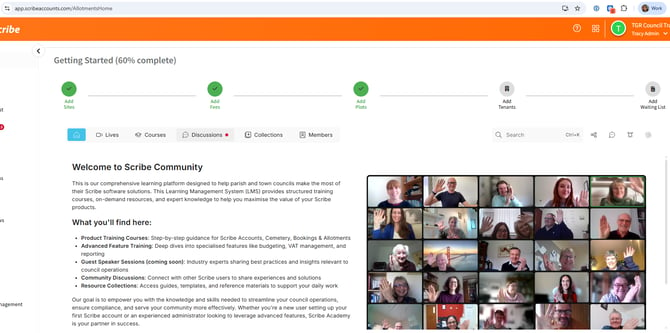
Look at the "Getting Started" progress bar at the top of the screen. All setup features must be completed to 100% to unlock the home page.
-
Add Sites and Fees records
Navigate to Set Up → Venues/Fees to add either option.
-
Add Plots
Click the + icon next to plot on the menu to add a plot
-
Add & Confirm Tenants
Click on the Add Tenants.
Note that simply adding a name is not enough; at least one tenant record must have its status set to "Confirmed" for this step to be marked as complete.
-
Add Waiting List
Click the + icon next to Waiting List on the left menu to add a Waiting List
If your Council does not maintain a waiting list or use this feature, you must add one "test" record (e.g., Name: Test, Status: Active) to satisfy the system's setup requirement.
-
Verify Completion:
Once the progress bar reaches 100%, the home screen will automatically refresh.
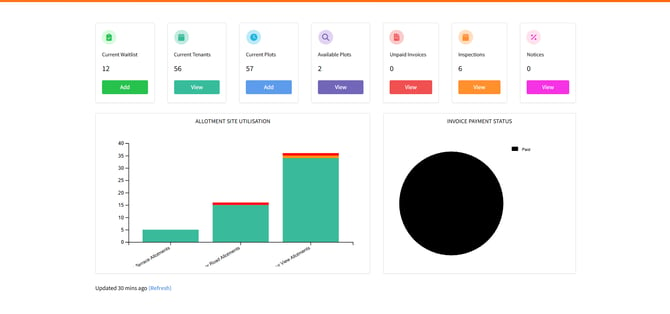
The "Getting Started" and "Scribe Community" sections will be replaced by the Bar Chart home page and Site Utilisation data.
Troubleshooting / Common Issues
| Issue | Possible Cause | Resolution |
|---|---|---|
| Still seeing the Community page at 80% completion | A required setup category (e.g., Tenants) is incomplete. | Ensure at least one tenant is marked as "Confirmed". |
| Do not have data for the Waiting List | Feature is not used by the Council. | Create a single test record to fulfill the 100% setup requirement. |
| Bar charts are empty | No plot data has been entered. | Ensure "Add Plots" has been completed with at least one active site. |
References