
What is the Accounts/Any Bank Report within Parish and Town Councils
The Accounts/Any Bank Report within Parish and Town Councils is a financial document that generates a transaction list for a specific bank account. This is essential when carrying out reconciliations or identifying any discrepancies with the bank statement. It provides data such as when cheques have been cashed, calculates the value of uncashed cheques, and the anticipated bank statement balance. The report showcases both the starting and finishing bank balances for the selected bank account, according to the transactions recorded in the accounts
What is the Accounts/Any Bank Report within Scribe Accounts
Scribe Accounts provides a tool called the Accounts/Any Bank Report. It's an advanced feature that provides a comprehensive view of all transactions of a selected bank account, including the cashed and uncashed transactions, and the expected bank statement balance.
This report shows a list of transactions against a specific bank account and the date to which each is cashed to.
There are three variations of the report:
- All: Showing all transactions.
- Cashed: Showing transactions that have been reconciled.
- Uncashed: Showing transactions that are yet to be reconciled.
Where is the Accounts/Any Bank Report within Scribe Accounts
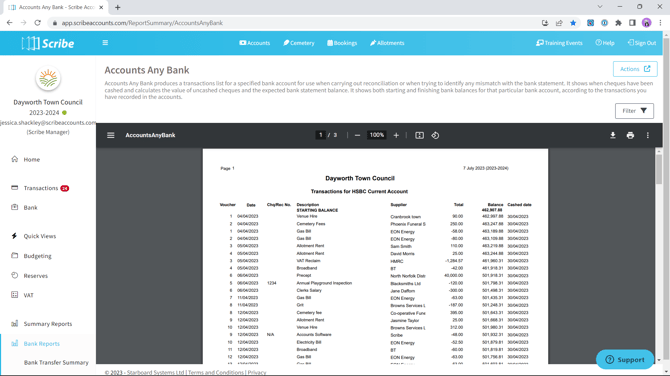
To access the Accounts/Any Bank Report, log into your Scribe Accounts and navigate to Bank Reports → Accounts/Any Bank. Alternatively, click here.
How To Generate An Accounts/Any Bank Report Within Scribe Accounts
Log into your Scribe Accounts, navigate to Bank Reports → Accounts/Any Bank .
How to Filter an Accounts/Any Bank Report
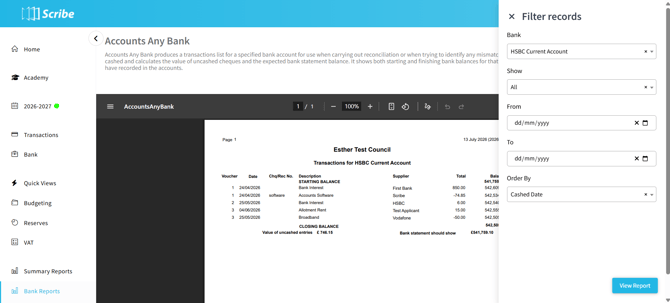
Before generating your report using the above steps, ensure you have selected the appropriate bank account via the 'Filter' button. This will allow you to view the report of transactions specific to that account.
This report can be filtered to show a specific date range using the 'Filter' tab at the top right-hand corner of the page. You can also filter the Accounts/Any Bank Report to display either all records, uncashed transactions only, or transactions cashed within a specific date range.
⚠️ One thing to note: When you filter to a specific date, the report excludes any items which are uncashed. To view uncashed items, you would need to go to Filter > Show > Uncashed.
How to Download an Accounts/Any Bank Report
Once you have created your report, you can download it by simply selecting the Google ‘Download’ button, or by using the Actions button in the top right corner where you can choose your preferred file format to start the download.
How to Print an Accounts/Any Bank Report
Once you have created your report, you can print it by simply clicking the printer icon located in the Google print bar.