
Prerequisites
Before starting, ensure that:
-
You have access to Scribe Bookings and Scribe Accounts.
-
Cost centres, cost codes, and VAT types are set up in Accounts.
Procedure
1. Open the Booking to Invoice
-
Navigate to Bookings in Scribe Bookings.
-
Select the booking you wish to invoice (e.g., block bookings with multiple line items).
-
Click Send to Accounts.
2. Enter Invoice Details
-
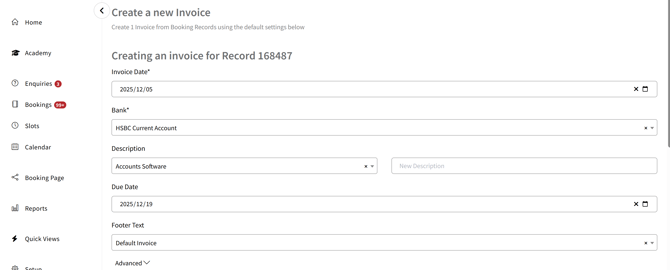
Select the invoice date.
-
Choose the bank account that will receive the payment.
-
Enter a brief description of the invoice.
-
Select a due date and amend the invoice footer if required.
3. Assign Cost Codes and VAT Types
-
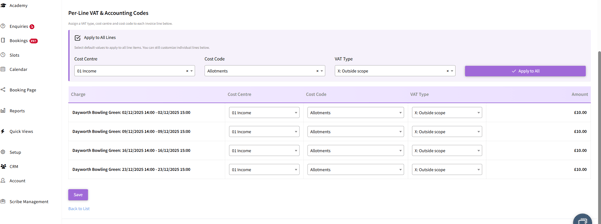
Review the line-item view. Each booking line can have its own:
-
Cost centre
-
Cost code
-
VAT type
-
-
To apply the same settings to all lines:
-
Select the cost centre, cost code, and VAT type at the top of the list.
-
Click Apply to All.
-
-
If a deposit or additional service requires a different code, select that line and assign the appropriate cost code manually.
4. Adjust Invoice Itemisation (Advanced Settings)
-
Expand the Advanced dropdown to access itemisation settings.
-
Choose how the invoice should be itemised:
-
By individual bookings
-
By month
-
By week
-
By quarter

-
Apply changes to all lines or adjust only the required ones.
5. Send the Invoice to Accounts
-
Click Save or Send to confirm.
-
A blue folder icon will appear next to the booking once the invoice is created.

6. Convert the Invoice to a Receipt (When Payment Is Received)
-
In Accounts, go to Transactions → Sales Invoices.
-
Select three dots on the right → Convert to Receipt.
-
Then click 'Convert' then click 'Save' just by following the prompt.
Troubleshooting / Common Issues
| Issue | Possible Cause | Resolution |
|---|---|---|
| Cost codes missing | Cost codes not set up | Review cost centre and code setup in Accounts before invoicing. |
| Invoice not appearing in Accounts | Booking not successfully sent | Reopen the booking → check for blue View in Accounts icon. |
| Incorrect split of invoice lines | Advanced itemisation not configured | Reopen Advanced settings and select correct itemisation method. |