
Add restricted dates:
- Navigate to Setup -> Restricted Dates.
- Select the '+' button to add a new restriction.
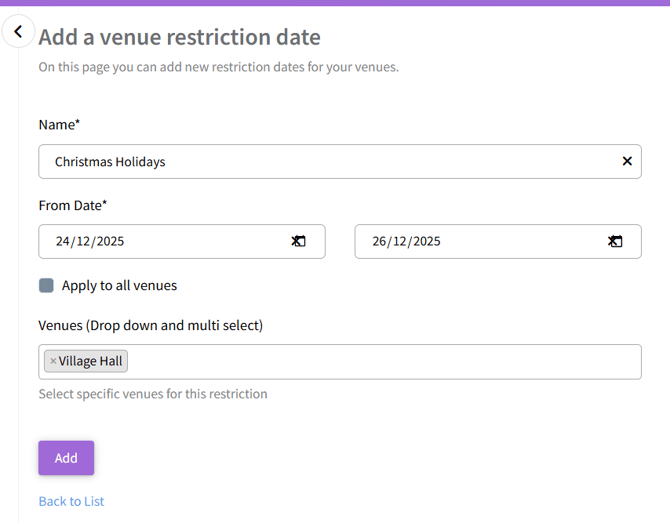
- Enter a name for these restricted dates.
- Select the date range applicable. If the venue will be closed for only one day, such as a bank holiday, input the same date into both date fields.
- If this restriction applies to all venues, tick the box 'Apply to all venues'. Alternatively, you can use the multi-select drop-down to choose specific venues this restriction applies to.
- Select 'Add'. Customers will then be unable to make online bookings for the specified dates.
Once a date is designated as restricted, the venue becomes completely unavailable for booking. Please note that even bookings administrators cannot override restricted dates or create bookings for these dates within the back-end of the system. To book a venue on a restricted date, the restriction must first be removed.